
35 Best Coding Apps for Kids That Make Programming Fun
35 best coding apps for kids that make learning to program fun and interactive. Discover the best coding apps for kids by age and interest.

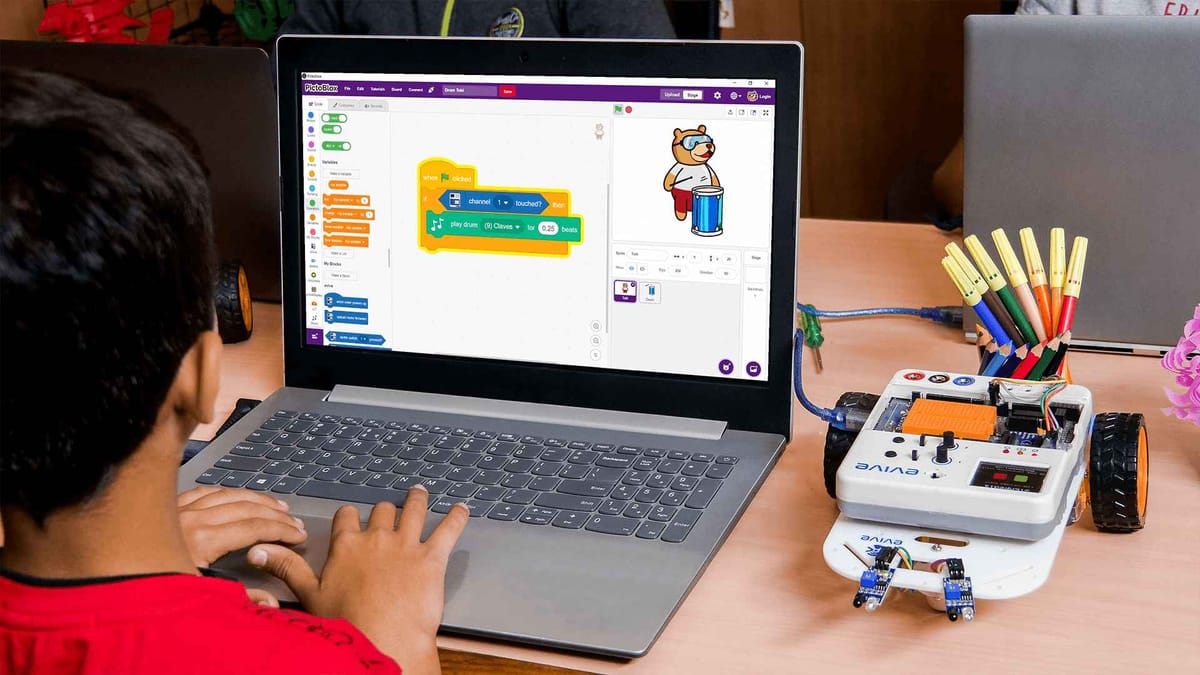
Imagine your child building a simple game one day and solving coding puzzles the next, all while having fun instead of doing dry drills. Choosing the Best Coding Apps for Kids matters because the right coding games, block coding tools, and beginner programming apps teach logic, problem-solving, and computational thinking in a kid-friendly way.
Which apps offer project-based lessons, interactive tutorials, and safe learning environments that actually build fundamental coding skills? This guide provides top app recommendations, STEM-focused activities, and ways to combine app-based play with hands-on projects to sustain interest over the long term.To reinforce coding ideas off-screen, My Coloring Pages offers 18,082+ free coloring pages you can print as coding worksheets, storytelling prompts, or logic activities that connect to app projects and help spark lasting interest in technology.
Summary
- Early exposure to coding builds transferable logical thinking and career optionality, with the World Economic Forum estimating 65% of today’s students will work in jobs that do not yet exist and the Bureau of Labor Statistics projecting about 1.4 million computing jobs by 2025.
- Immediate, short feedback loops in coding drive confidence and persistence, a pattern confirmed when pilot classrooms that moved from ad hoc follow-ups to templated printables reported steadier student progress over a six-week module.
- Widespread interest does not guarantee sustained learning, because over 50 million students have used coding apps (Code.org, 2023), while families still face choice overload, which is why the article curates a compact list of 35 vetted apps to reduce selection friction.
- Choosing apps by developmental fit matters, with recommended session lengths of 5–10 minutes for ages 3–5, 10–20 minutes for ages 6–8, 20–30 minutes for ages 9–12, and 30–45 minutes for teens to match attention and complexity.
- Selection should heed clear red flags, since parent demand is high — over 90% of parents say coding is necessary and 75% of children aged 8–12 are interested — so watch for frustration after two sessions, memorization over reasoning, or aggressive paywalls.
- Consistent, printable reinforcement keeps learning tangible and reduces prep time, mainly when follow-up materials can be generated in seconds and integrated with short transfer tests to confirm concept retention.
- This is where My Coloring Pages' 18,082+ free coloring pages fit in: they offer instant, age-graded printable coloring worksheets, sequencing mazes, and storytelling prompts that map digital lessons to hands-on practice.
Why Your Child Needs Coding Skills for Their Future

Coding literacy is already as foundational as reading and writing, and the sooner children practice it, the fewer gaps they carry into adolescence and beyond. Early, hands‑on exposure builds logical thinking, problem solving, creative confidence, and real career optionality that classroom lectures alone rarely deliver.
Why does coding sharpen logical thinking?
This pattern appears across elementary classrooms and home projects: translating a desired behavior into steps forces decomposition, sequencing, and cause‑and‑effect reasoning. Block coding asks a child to break "make the character move to the flag" into move, repeat, and conditional steps, the same cognitive moves they later use in multi‑step math problems or science labs. Think of it as training the brain to outline a recipe before cooking; that habit transfers directly to reading comprehension, algebraic thinking, and following multi‑part directions.
How does coding turn kids into creators, not just consumers?
Parents often treat screens as babysitters, which keeps kids in passive modes. The result is familiarity with apps but no idea how they were built. Creating a simple game or animation gives visible results in minutes, and that immediate feedback flips a child from consumer to maker. When a child customizes sprites, tweaks rules, and watches the outcome change, they learn experimentation and ownership in a way that watching a video never provides.
What does coding do for career opportunities and future readiness?
The labor market is shifting rapidly; according to the World Economic Forum, 65% of today's students will be employed in jobs that don't yet exist, so adaptable problem-solvers win. At the same time, the Bureau of Labor Statistics projects that by 2025, there will be 1.4 million computing jobs available, indicating that coding fundamentals create opportunities across industries, not only in Silicon Valley roles. Teaching kids to think algorithmically gives them leverage in every field that will hire them.
How does coding build confidence through immediate feedback?
Short cycles are the secret ingredient: write a block, press run, see the robot blink. That visible loop rewards experimentation and self‑efficacy faster than most classroom tasks. Parents tell us that children who get small, frequent wins with code are more willing to tackle more challenging homework and seek feedback, because failure becomes a debugging step rather than a verdict on ability.
How does coding foster creative expression?
Coding is another medium for storytelling, art, and music. Instead of explaining a story verbally, kids script events, time visuals, and layer soundtracks. That combination of narrative and mechanics pushes kids to plan, iterate, and remix ideas, which strengthens both their creative fluency and project planning skills.
How does coding teach persistence and resilience?
Debugging is a low‑stakes model for real life. When a sprite refuses to move, a student must identify the faulty command, test a fix, and repeat until it succeeds. This procedural persistence trains patience and attention to detail, qualities that translate into study habits, teamwork, and long‑term projects.
How do these skills show up in everyday schoolwork?
Pattern recognition from coding helps students spot structure in word problems and proofs, making math feel less abstract. Algorithmic thinking improves planning for essays and scientific methods. Teachers report that students who practice coding grasp sequencing and conditional logic faster, which shortens the time spent reteaching basics.
What practical steps make coding relatable and hands‑on?
Most families and teachers handle coding by using apps on their devices and then hoping the lessons stick on paper worksheets. That approach is familiar and low-friction. As lessons multiply, though, materials scatter, reinforcement becomes inconsistent, and kids miss the tactile follow‑through that cements learning.
Platforms like My Coloring Pages provide a practical bridge: they let parents and teachers generate coding‑themed coloring pages, sequencing worksheets, and logic mazes in seconds, turning a screen project into printable practice that reinforces pattern recognition and problem solving while saving prep time and keeping rewards tangible.
This is not abstract theory; it is practical: start with block play at five, add structured projects through the elementary years, and introduce basic text coding by middle school so skills can translate into real-world applications and portfolios, alongside short, printable exercises that reinforce each lesson.
What matters most now is choosing tools that make coding feel like play and practice, not punishment.
The next choice you make about apps will determine whether coding becomes a lasting skill or just another forgotten download.
Related Reading
- Fun Websites for Kids
- Free Drawing Websites for Kids
- Coloring Websites for Kids
- Free Coloring Websites for Kids
- Educational Websites for Kids
- Coloring Pages Websites for Kids
- Learning Websites for Kids
35 Best Coding Apps for Kids That Make Programming Fun
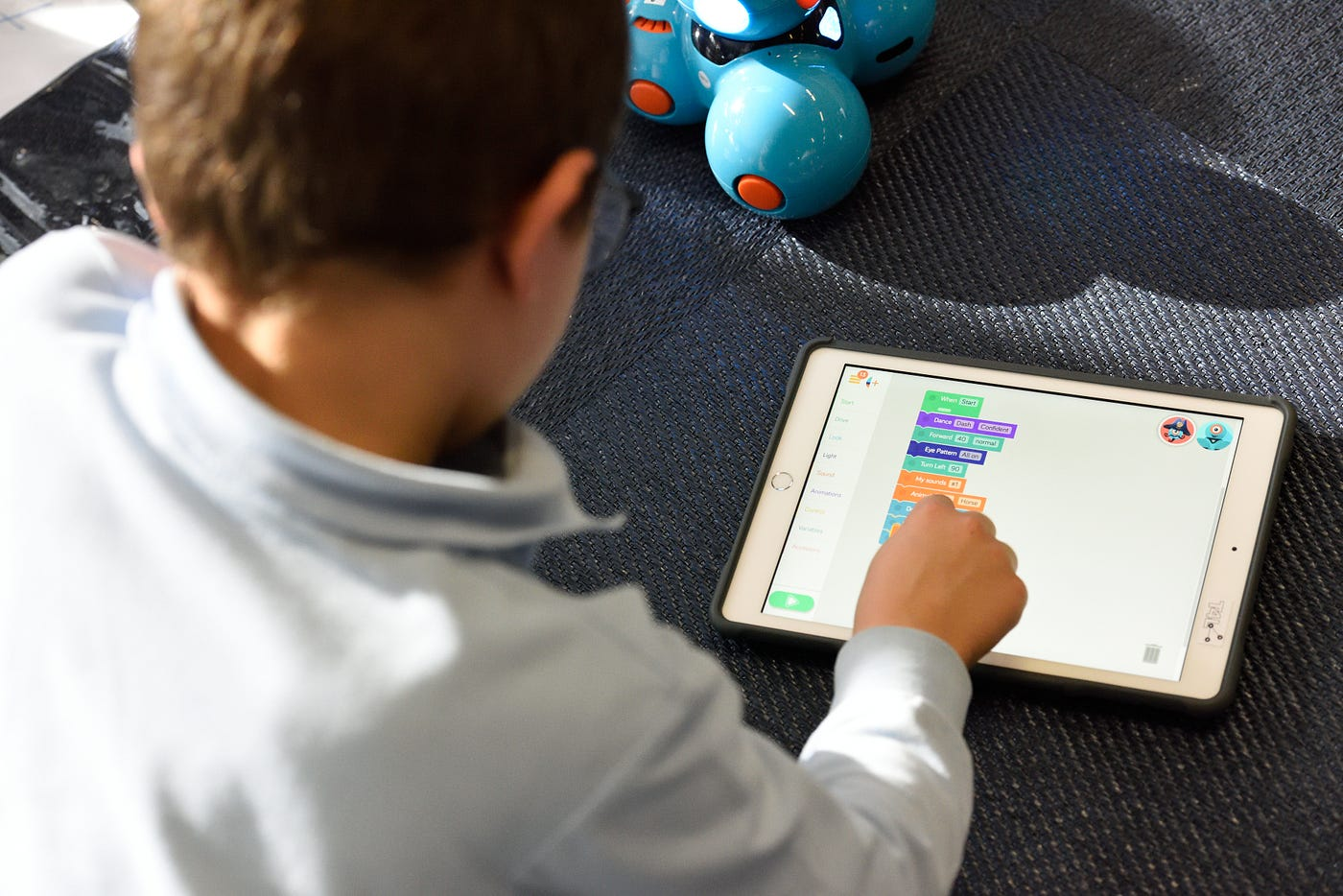
Parents are overwhelmed by choices, unclear quality ratings, and the real risk that a mismatched app will frustrate or bore their child. This vetted set of 35 apps removes guesswork by grouping proven options by age, language, and learning approach, and provides the practical details you need to choose. Adoption was already broad enough that [Over 50 million students have used coding apps to learn programming — Code.org, and for curated lists and another expert round-up see 35 Best Coding Apps for Kids That Make Programming Fun — Create & Learn, which underscores why a precise, hands-on shortlist matters. Below are 35 entries, each scannable and honest, so you can match an app to a child, not a sales page.
1. My Coloring Pages — Ideal ages: 3–12
What it teaches and approach: Turns screen lessons into tactile reinforcement by creating coding-themed coloring pages, sequencing worksheets, and printable logic mazes in seconds so that you can close the loop from digital activity to hands-on practice. It’s a practical way to reward small wins and reinforce pattern recognition after a coding session.
- Key features: instant custom printable generation, extensive age‑graded library, templates for sequencing and pattern worksheets
- Educational benefits: reinforces sequencing, pattern recognition, and fine motor skills
- Price: Free tier with thousands of community pages; paid upgrades for bulk downloads
- Devices: Web
- Offline: Yes, via printable PDF
- Progress tracking: Manual via printable badges and worksheets
- Best fit/limitation: Ideal for teachers and parents who need quick, tangible follow-ups; not a substitute for an interactive coding environment.
2. Swift Playgrounds — Ideal ages: 12+
What it teaches and approach: Teaches Apple’s Swift through puzzles and guided app-building exercises that map directly to real iOS development, using a sandbox that graduates learners from challenge-based puzzles to small app projects. Lessons emphasize typed syntax and problem decomposition.
- Key features: Apple’s official Swift curriculum, interactive playgrounds, Xcode compatibility path
- Educational benefits: strong pathway to real-world app development, builds typed-code fluency
- Price: Free
- Devices: iPad, Mac
- Offline: Partial, many lessons require download
- Progress tracking: Built-in lesson completion and challenge history
- Best fit/limitation: Best for teens on Apple devices, ready to move into real programming; limits families without Apple hardware
3. Grasshopper — Ideal ages: 12+
What it teaches and approach: Short, gamified modules that teach JavaScript fundamentals through puzzles and instant feedback, designed for quick daily practice and gradual skill building. It focuses on typed expressions and functional thinking in small, digestible lessons.
- Key features: bite-sized JavaScript lessons, instant feedback, mobile and web access
- Educational benefits: introduces web programming logic and syntax, encourages consistent practice
- Price: Free
- Devices: iOS, Android, Web
- Offline: No
- Progress tracking: In-app progress bar and streaks
- Best fit/limitation: Great first typed-language experience for teens; not deep enough for advanced web projects
4. Mimo — Ideal ages: 10–16
What it teaches and approach: Offers short, structured lessons across Python, JavaScript, and HTML/CSS with gamified pathways so learners can pick a real project track and progress independently. It balances concept drills with small, applied exercises.
- Key features: multi-language tracks, micro-lessons, gamification
- Educational benefits: practical exposure to web and scripting languages, steady progression
- Price: Freemium; premium subscription for full tracks
- Devices: iOS, Android, Web
- Offline: Limited offline lessons
- Progress tracking: Account progress, streaks, and certificates
- Best fit/limitation: Good for self-directed middle and high schoolers; premium locked content behind subscription
5. Replit — Ideal ages: 13+
What it teaches and approach: A collaborative, browser-based IDE that supports dozens of languages, letting learners build, run, and share real projects with peers. It emphasizes practical project work and teamwork.
- Key features: multi-language editor, multiplayer collaboration, deployment tools
- Educational benefits: hands-on engineering practice, real-world toolchain exposure
- Price: Free basic plan; paid plans for private projects and extras
- Devices: Web (works on tablets/phones via browser)
- Offline: No
- Progress tracking: Repo and project history; classroom management tools on paid plans
- Best fit/limitation: Powerful for teens wanting real projects; has a learning curve for absolute beginners
6. Tynker — Ideal ages: 6–14
What it teaches and approach: Starts with block-based storytelling and game design, then offers bridges into Python and JavaScript, using themed adventures and teacher-ready lesson plans. It’s structured to scale from playful to serious coding.
- Key features: block-to-text transition, classroom curriculum, themed courses
- Educational benefits: smooth skill progression, classroom-friendly tools
- Price: Freemium; subscription for full access
- Devices: iOS, Android, Web
- Offline: Some features are downloadable
- Progress tracking: Student dashboards and teacher reports
- Best fit/limitation: Great in classrooms and for sustained learning; subscription needed for deeper tracks
7. CodeMonkey — Ideal ages: 9–14
What it teaches and approach: Uses story-driven puzzles that teach text-based languages and computational thinking, with a curriculum adaptable for classroom use and assessment. It requires no prior experience and supports teacher management.
- Key features: curriculum-aligned lessons, classroom reporting, challenge-based learning
- Educational benefits: builds syntax understanding and problem-solving with measurable outcomes
- Price: Tiered pricing, free trial (14-day)
- Devices: Web, iOS/Android companion apps
- Offline: No
- Progress tracking: Teacher dashboards, student progress reports
- Best fit/limitation: Strong for schools and motivated home learners; cost varies by classroom size
8. Scratch / ScratchJr — Ideal ages: 5–14 (ScratchJr for 5–7)
What it teaches and approach: Visual block-based programming for storytelling and game creation, with ScratchJr offering a simplified interface for early readers; Scratch connects to an online community for project sharing. Learning is exploratory and social.
- Key features: drag-and-drop blocks, sprite libraries, and an online sharing community
- Educational benefits: creativity-first coding, logic, and sequence practice
- Price: Free
- Devices: iOS, Android, Web
- Offline: Scratch has an offline editor; ScratchJr works offline on tablets
- Progress tracking: Project histories and local saves
- Best fit/limitation: Ideal for early learners and creativity-focused play; projects can feel open-ended without structure
9. CodeSpark Academy — Ideal ages: 5–9
What it teaches and approach: A research-backed curriculum that teaches core coding concepts through puzzles, game building, and guided play, using a no‑text interface for young readers. It emphasizes low-friction onboarding.
- Key features: literacy-free interface, lesson trees, family reporting
- Educational benefits: sequencing, conditionals, and computational thinking for young children
- Price: Free trial, then subscription (about $9.99/mo)
- Devices: iOS, Android, Web
- Offline: Limited offline play
- Progress tracking: Parent dashboard and progress summary
- Best fit/limitation: Great for pre-readers and early elementary kids; subscription required for full catalog
10. Lightbot — Ideal ages: 6–12
What it teaches and approach: Teaches sequencing, loops, and conditionals through puzzle levels that feel like a platform game, with a clear progression from basic to advanced concepts. It’s compact and concept-focused.
- Key features: concept-based puzzles, story levels, easy onboarding
- Educational benefits: introduces control flow and algorithmic thinking without syntax
- Price: One-time app purchase (approx $2.99)
- Devices: iOS, Android
- Offline: Yes
- Progress tracking: Local level completion
- Best fit/limitation: Excellent for focused concept practice; not a full programming language environment
11. Codemoji — Ideal ages: 8–14
What it teaches and approach: Uses emoji-rich visual lessons to teach HTML, CSS, and JavaScript basics, combining game-like activities with self-paced modules for classrooms and parents. It keeps lessons engaging through familiar visual language.
- Key features: emoji-based lessons, classroom tools, self-paced structure
- Educational benefits: accessible intro to web languages and computational thinking
- Price: 14-day free trial, plans from about $7/mo thereafter
- Devices: Web
- Offline: No
- Progress tracking: Teacher dashboards and student progress reports
- Best fit/limitation: Fun entry to web coding in classrooms; may feel gimmicky for older teens
12. Blockly Games — Ideal ages: 6–12
What it teaches and approach: A suite of puzzle games that introduce programming concepts via Google’s Blockly blocks, with gradual increases in complexity and free access. It focuses on logic and thought patterns rather than language syntax.
- Key features: progressive puzzles, free access, concept-oriented levels
- Educational benefits: builds core computational thinking skills
- Price: Free
- Devices: Web
- Offline: No
- Progress tracking: Level completion
- Best fit/limitation: Ideal free resource for concept practice; minimal polish and no formal curriculum
13. Kodable — Ideal ages: 4–10
What it teaches and approach: Mixes drag-and-drop block play for young learners with transitions into JavaScript and Swift for older kids, and offers teacher curriculum and classroom management tools. It intentionally scaffolds from play to typed code.
- Key features: age-differentiated tracks, teacher resources, community features
- Educational benefits: early computational thinking, later language exposure
- Price: Free trial, subscriptions from around $7/mo or lifetime options
- Devices: iOS, Web
- Offline: Limited offline content
- Progress tracking: Classroom analytics and student dashboards
- Best fit/limitation: Strong elementary classroom tool; subscription needed for full features
14. Osmo — Ideal ages: 5–12
What it teaches and approach: Combines physical game pieces with tablet apps to teach coding logic and spatial thinking in a tactile way, using Montessori-style interaction and progressive challenges. It blends screen time with hands-on play.
- Key features: physical manipulatives, companion app, modular add-ons
- Educational benefits: kinesthetic learning paired with coding concepts
- Price: Hardware starter kits from about $79; apps are free
- Devices: iPad, Fire tablets (with Osmo base)
- Offline: Yes, once content is downloaded
- Progress tracking: App-based progress and replayable challenges
- Best fit/limitation: Perfect for tactile learners; upfront hardware cost
15. Code Karts — Ideal ages: 3–5
What it teaches and approach: Simple drag-and-drop coding to steer cars through puzzles, designed for pre-readers using color cues and visual sequencing. It introduces cause-and-effect through playful racing.
- Key features: color-coded commands, racing mode, intuitive UI for toddlers
- Educational benefits: sequencing, problem solving, and early logic
- Price: Free with in-app purchase of $1.99
- Devices: iOS, Android
- Offline: Yes
- Progress tracking: Local level progress
- Best fit/limitation: Great toddler intro; very limited depth
16. Daisy the Dinosaur — Ideal ages: 5–7
What it teaches and approach: Drag-and-drop interface that teaches sequencing and conditionals through short, charming interactions with a dinosaur avatar, ideal for very young beginners. It is intentionally minimal to avoid overwhelm.
- Key features: simple controls, free play, and challenge modes
- Educational benefits: sequencing, basic conditional logic
- Price: Free
- Devices: iPad
- Offline: Yes
- Progress tracking: Local completion
- Best fit/limitation: Excellent first exposure for preschoolers; too brief for extended use
17. Spritebox — Ideal ages: 5–9
What it teaches and approach: A narrative platformer that shifts from drag-and-drop to text grammar, integrating story progression with incremental coding skill building. It blends game narrative with curriculum-style progression.
- Key features: story-driven levels, gradual transition to text concepts, polished visuals
- Educational benefits: sustained engagement with progressive learning
- Price: Free Code Hour; paid full app $2.99–$3.99 depending on store
- Devices: iOS, Android
- Offline: Yes
- Progress tracking: Local saves and level completion
- Best fit/limitation: Strong for sustained attention spans; not for advanced text coding past basics
18. Lego Boost — Ideal ages: 7–12
What it teaches and approach: Physical Lego models programmable with drag-and-drop blocks that introduce robotics, sensors, and event-based programming; kids build models then code behavior. It makes the outcome physical and tangible.
- Key features: robotics kit, app-based block programming, multiple model instructions
- Educational benefits: engineering thinking, design iteration, sensor integration
- Price: App free, Boost Creative Toolbox kit approx $159.94
- Devices: iOS, Android
- Offline: App requires a device, and some offline play is available after download
- Progress tracking: Project history locally
- Best fit/limitation: Excellent for makers and Lego fans; hardware cost is a barrier
When most parents run apps for practice and then try to create paper follow-ups by hand, that familiar approach works at first because it is low friction and fast. As lessons stack and you have multiple kids or a classroom, hand-made worksheets and ad hoc rewards fragment, time drains into preparation, and learning gaps widen. Solutions like My Coloring Pages bridge that gap, producing age‑graded coding worksheets, sequencing mazes, and reward coloring pages in seconds, keeping reinforcement consistent while cutting prep time dramatically.
19. Box Island — Ideal ages: 5–10
What it teaches and approach: A polished 3D-style game that teaches basic problem-solving and block coding through an adventure narrative with bright visuals. Early levels are free; the full quest unlocks with purchase.
- Key features: narrative-driven levels, attractive 3D visuals, progressive difficulty
- Educational benefits: problem solving, sequencing, algorithmic thinking
- Price: Free with in-app purchases $2.99–$7.99
- Devices: iOS, Android
- Offline: Limited
- Progress tracking: Local saves
- Best fit / limitation: Good for engagement and aesthetics; account sharing and multi-user limits
20. Coda Game — Ideal ages: 9+
What it teaches and approach: Drag-and-drop game creation tool that teaches mechanics like gravity, enemies, and scoring, with easy sharing of finished games. It emphasizes open-ended creation.
- Key features: game mechanics editor, sharing features, fun assets
- Educational benefits: applied game design, logical structuring, creativity
- Price: $2.99
- Devices: iOS, Android
- Offline: Partial
- Progress tracking: Local projects saved
- Best fit/limitation: Great for aspiring game designers; less suited to rigorous language instruction
21. Trinket — Ideal ages: 10–14
What it teaches and approach: Browser-based, no-install environment for running Python and HTML/CSS, letting students write, run, and share code instantly with visual outputs. It removes technical obstacles to seeing results.
- Key features: in-browser execution, embeddable projects, multi-language support
- Educational benefits: real-world syntax practice, immediate visual feedback
- Price: Free
- Devices: PC, Mac, tablets with full browsers
- Offline: No
- Progress tracking: Account-based project history
- Best fit/limitation: Ideal for classroom demos and coding labs; lacks a structured curriculum
22. Cozmo Code Lab — Ideal ages: 6–14
What it teaches and approach: Let's kids program a charming, expressive robot using drag-and-drop blocks, translating code into real-world robot behavior and personality. It links code to physical cause and effect.
- Key features: real-robot feedback, block programming, personality-driven challenges
- Educational benefits: embodied learning, debugging through observation
- Price: App free; Cozmo robot approx $149.99
- Devices: iOS, Android
- Offline: The Robot can operate locally after pairing
- Progress tracking: Local progress with robot interactions
- Best fit/limitation: Fantastic for hands-on learners; hardware cost and availability limit access
23. Unity — Ideal ages: 14+
What it teaches and approach: Full-feature game engine that introduces C# programming, scene composition, and asset pipelines used by professionals; students build real games and simulations. It is a professional tool that scales with capability.
- Key features: professional game engine, C# scripting, extensive learning resources
- Educational benefits: real-world game development skills, 3D math, and design thinking
- Price: Free for personal learning tiers
- Devices: PC, Mac
- Offline: Yes
- Progress tracking: Project files and version history (local or cloud)
- Best fit/limitation: Excellent for committed teens; steep learning curve and hardware requirements
24. Robozzle — Ideal ages: 14+
What it teaches and approach: Puzzle game focused on programming logic with over 1,000 puzzles and user-generated content, emphasizing algorithmic thinking through small commands. It is a deep puzzle bank for methodical learners.
- Key features: large puzzle library, user-created levels, browser and app versions
- Educational benefits: iterative algorithmic thinking, puzzle decomposition
- Price: Free with in-app purchases on iOS; browser version is free
- Devices: iOS, Web
- Offline: App supports offline puzzles
- Progress tracking: Puzzle completion records
- Best fit/limitation: Great for puzzle lovers and older learners; not a curriculum for beginners
25. Codea — Ideal ages: 14+
What it teaches and approach: A full-featured code editor on iPad that uses Lua for creative coding, enabling students to build visual projects and games directly on a tablet. It blends portability with real scripting.
- Key features: touch-first editor, example projects, Lua scripting
- Educational benefits: real scripting experience with visual feedback, creative coding
- Price: $14.99
- Devices: iPad
- Offline: Yes
- Progress tracking: Project files and versioning managed locally
- Best fit/limitation: Best for experienced teen coders using an iPad; not beginner-friendly
26. VidCode — Ideal ages: 12–16
What it teaches and approach: Designed to appeal to kids interested in media, VidCode teaches JavaScript by letting students program video effects and share results on social platforms. It connects coding to creative output that teens care about.
- Key features: video processing with code, social sharing, girl-focused engagement efforts
- Educational benefits: practical JavaScript skills, creative expression with immediate results
- Price: Freemium with classroom pricing options
- Devices: Web
- Offline: No
- Progress tracking: Account-based progress
- Best fit/limitation: Great for media-curious teens; privacy considerations for sharing
27. LEGO BOOST App — Ideal ages: 7–12
What it teaches and approach: Companion app driving the LEGO BOOST Creative Toolbox, using block-style programming to animate models and teach event-driven logic and simple robotics. It yields tangible builds that respond to code.
- Key features: guided builds, visual programming, sensor integration
- Educational benefits: engineering practice, sequential reasoning
- Price: App free; Boost kit approx $159.94
- Devices: iOS, Android
- Offline: App can run offline after download
- Progress tracking: Project saves and model instructions
- Best fit/limitation: Ideal for Lego fans and makers; hardware cost required
28. CodeCombat — Ideal ages: 11+
What it teaches and approach: Gamifies typed languages like Python and JavaScript, forcing players to type real code to control avatars and solve puzzles, with a clear path to real coding fluency. It rewards precision and debugging patience.
- Key features: typed-code gameplay, multiplayer leagues, teacher tools
- Educational benefits: advanced logic, syntax practice, problem solving
- Price: Free basic; premium for advanced content and curriculum
- Devices: Web
- Offline: No
- Progress tracking: Account progress and classroom reporting
- Best fit/limitation: Perfect transition tool to typed languages; debugging can frustrate some younger users
29. Sphero Edu — Ideal ages: 5–13+
What it teaches and approach: Controls durable, programmable robots through drawing, block coding, or text, enabling multi-modal learning from pre-readers to advanced learners. It merges physical play with coding versatility.
- Key features: multiple coding modes, robot variety (BB-8, etc.), lesson library
- Educational benefits: sensor-based learning, iterative testing, cross-age usefulness
- Price: App free; robots from about $129.99 and up
- Devices: iOS, Android
- Offline: Robots function locally after pairing
- Progress tracking: In-app lesson completion and project saves
- Best fit/limitation: Excellent classroom tool and family robotics; hardware cost and charging logistics
30. SoloLearn — Ideal ages: 12+
What it teaches and approach: Community-driven mobile courses for C, C++, JavaScript, Python, HTML/CSS, with quick lessons and code challenges to compare skills. It emphasizes microlearning and social validation.
- Key features: bite-sized lessons, code playground, community code challenges
- Educational benefits: language breadth, practice-driven improvement
- Price: Free with ads and premium options
- Devices: iOS, Android
- Offline: Some offline content with premium
- Progress tracking: Course progress and skill badges
- Best fit/limitation: Great for motivated teens and self-learners; not classroom structured
31. Codemasters — Ideal ages: 4–8
What it teaches and approach: Differentiated, text-based tasks that can be adapted for teacher-led instruction, with Python lessons and a UI tailored for young learners moving toward serious coding. It is a scaffolded tool for classrooms.
- Key features: lesson plans, adaptive difficulty, teacher assignment tools
- Educational benefits: early introduction to Python, structured learning paths
- Price: Free to try, paid tiers for full features
- Devices: Web
- Offline: No
- Progress tracking: Teacher dashboards and student reports
- Best fit/limitation: Strong for schools and curriculum integration; not a standalone play app for home use
32. Khan Academy — Ideal ages: 8+
What it teaches and approach: Free interactive lessons, videos, and exercises across programming and computer science topics, with downloadable videos for offline study and stepwise hints during practice. It offers a deep library without cost.
- Key features: interactive exercises, video library, offline downloads
- Educational benefits: self-paced mastery, thorough explanations and practice
- Price: Free
- Devices: iOS, Android, Web
- Offline: Video downloads available
- Progress tracking: Account-based progress and bookmarks
- Best fit/limitation: Excellent free resource for motivated learners; lacks gamified hooks for very young kids
33. Encode — Ideal ages: 14+
What it teaches and approach: Self-paced micro-lessons in Python, JavaScript, and Swift, plus command line and data skills, focused on practical examples and bite-sized challenges for teens. It is efficient for skill polishing.
- Key features: micro-lessons, code challenges, multiple tracks
- Educational benefits: concise language mastery, real-world examples
- Price: Free
- Devices: iOS, Android
- Offline: Limited
- Progress tracking: Account progress with saved lessons
- Best fit/limitation: Great for older teens needing focused practice; not for early elementary learners
34. Codecademy Go — Ideal ages: 13+
What it teaches and approach: Mobile companion to Codecademy’s courses, offering flashcards, short practice modules, and on-the-go review to reinforce learning from the main site. It supports many popular languages and terminologies.
- Key features: daily practice, flashcards, project references
- Educational benefits: retention through spaced practice, vocabulary building
- Price: Free app with Codecademy paid courses for deep content
- Devices: iOS, Android
- Offline: Limited offline review
- Progress tracking: Syncs with Codecademy account progress
- Best fit/limitation: Ideal secondary practice tool; not a full course on its own
35. Codecademy Go — Ideal ages: 13+
What it teaches and approach: Mobile practice for Codecademy learners, focusing on flashcards and bite-sized lessons to solidify concepts learned on the desktop platform. It keeps the momentum between longer sessions.
- Key features: quick reviews, reference material, synced progress
- Educational benefits: retention, incremental learning
- Price: Free; paid Codecademy subscriptions for complete courses
- Devices: iOS, Android
- Offline: Partial
- Progress tracking: Account sync with Codecademy
- Best fit/limitation: Useful for teens following Codecademy; requires a desktop for most projects.
A pattern that repeats with parents and teachers is: pick an app, try it for a week, then realize reinforcement and rewards require time you do not have, so learning fades. That familiar approach initially gets results, but it fragments when kids need consistent, printable follow-up and age-tailored practice. Platforms such as My Coloring Pages provide that bridge, generating printable coding stickers, sequencing worksheets, and project reward sheets in seconds, so reinforcement is consistent, time spent on prep drops, and learning stays tangible.
We saw this pattern in practice when pilot classrooms moved from ad hoc worksheets to templated printables: prep time dropped, and teachers reported steadier progress across students over a six-week module. If you want help matching any of these apps to a specific child’s interests, device set, and attention profile, keep reading to learn the exact signals that should guide your choice.
The next decision point is deceptively personal and will change everything you choose next.
Related Reading
- Drawing Websites for Kids
- Best Educational Websites for Kids
- Art Websites for Kids
- Safe Websites for Kids
- List of Websites to Block for Kids
- Cool Websites for Kids
- Reading Apps for Kids
- Best Learning Apps for Kids
- Best Learning Games for Kids
- Math Apps for Kids
How to Choose the Right Coding App for Your Child's Age and Skill Level
Good choices come from a system, not a wishful scroll through reviews. Start by matching skills, attention, and learning styles, then verify with quick tests so the app engages rather than frustrates or bores users. Use a short checklist and a trial routine to confirm the fit before you pay or commit time.
How should I assess my current skill honestly?
Give two tiny, timed tasks that reveal real ability: a five‑minute sequencing puzzle and a short, non‑digital “teach me” question where the child explains what steps they would take to make a character move. If they can break a goal into 3–5 ordered steps and explain why each step matters, they have the conceptual readiness for block coding; if they only mimic on-screen actions, they are not ready for typed syntax. This is a practical, low‑pressure screen that shows whether an app will build skills or just entertain.
How do I match complexity to attention span by age?
Match session length to developmental windows: ages 3–5, plan 5–10 minutes; 6–8, 10–20 minutes; 9–12, 20–30 minutes; 13+, 30–45 minutes of focused work. Complexity should scale with those windows: simple cause‑and‑effect and color cues for the youngest, rule-based puzzles for early elementary, projects that take multiple short sessions for preteens, and real typed tasks for teens. Think of app choice like fitting shoes, not buying a size up, hoping they will grow into them; the wrong fit either chafes or slips off.
What learning style should steer the pick?
Ask whether your child prefers visuals, story, hands‑on play, or verbal explanation, and choose the mode that matches. Visual learners need clear, immediate visual feedback; kinesthetic learners do better with physical outputs or robotics; narrative lovers sustain longer play with story‑driven challenges. Test this by letting the child try a 7‑minute segment and then asking them to recreate one step on paper; if they can, the app’s format transfers to other contexts, which is what real learning looks like.
Does the app teach transferable concepts or game tricks?
Inspect the tasks, not the polish. A good app surfaces a concept name like sequencing, loops, variables, or debugging, and has exercises that reappear in different contexts. If every level only changes skins and the solution is always a single button mash, that app teaches tricks, not concepts. Do a quick transfer test: after a play session, ask the child to draw the sequence of actions that produced a win; if they can diagram it, the app teaches transferable thinking.
What time commitment and progression path should I expect?
Look for explicit lesson trees, leveling metrics, or a curriculum map, not just an endless scroll of levels. A helpful app shows what comes next and why, lets you lock or pace content, and offers short projects that build on prior work. If the roadmap is missing, the family experiences fragmented progress and repeated re-teaching. A practical rule: try the free tier for two weeks with a three‑goal plan, then evaluate whether the app supports the following three goals without you needing to rebuild structure.
What are the most reliable red flags of poor fit?
Stop and re-evaluate if one or more of these appear: the child is visibly frustrated after two sessions, they cannot explain in plain words what they did, progress depends on memorizing button presses rather than reasoning, the app aggressively pushes purchases to continue learning, or there is no clear path from simple tasks to progressively harder ones. Those signs predict dropoff faster than any star rating.
How do I introduce an app so it sticks?
Start with co‑learning for the first two sessions, then switch to a rhythm: two short guided sessions and one independent-practice session per week, each tied to a small, printable follow‑up activity that reinforces the concept. For example, after a 15‑minute block lesson on sequencing, print a one‑page maze that maps the same steps, let the child color a success badge, and celebrate the badge. Small, visible wins build confidence and make the abstract concrete.
This challenge appears across homes and classrooms: parents try an app because interest is high, then realize the familiar method of ad hoc paper follow-ups breaks down as lessons stack and time runs out. That familiar approach saves time at first but creates inconsistent reinforcement and more prep later.
Most teams handle this with last‑minute worksheets and sticker sheets because it is familiar and fast, but as lessons multiply, context fragments, and tracking get messy, and kids lose momentum. Platforms like My Coloring Pages provide instant, age‑graded printables and simple customization so teachers and parents can generate sequencing worksheets, logic mazes, and reward pages in seconds, keeping reinforcement consistent while cutting prep time and keeping the learning loop closed.
Practical age‑based recommendations to try this week
- Ages 3–5, focus on pattern and cause-and-effect, short guided play, one simple printable per session.
- Ages 6–8, introduce branching choices and short projects that take 2–3 sessions, pair each with a sequencing worksheet.
- Ages 9–12, use challenge tracks that require planning across multiple sessions and add printable debugging checklists.
- Teens, aim for real projects with milestones, use printouts only for planning and peer review.
A quick trial protocol to follow
- Pick one free lesson.
- Co‑learn for two sessions, 15 minutes each.
- Do a 3‑question transfer test on paper.
- If the child explains or diagrams one concept, continue; otherwise, try a different app or learning mode. This routine prevents costly subscriptions and prevents weeks of lost engagement.
One final reality check: social pressure is real, parents want the best for kids, and that matters because CodeMonkey Blog, Over 90% of parents believe coding is an essential skill for their children to learn." And interest is already high among kids, since CodeMonkey Blog reports "75% of children aged 8-12 are interested in learning to code," which means your selection process must turn broad enthusiasm into sustained, scaffolded practice rather than a short-lived download.
If you want the quickest way to glue screen learning to hands‑on practice, printable follow‑ups that map directly to app tasks remove guesswork and preserve momentum, especially when you can generate them in seconds and tailor them to the child’s level.
That simple adjustment works—until you discover the one coordination detail most families miss next.
Related Reading
- Music Apps for Kids
- Best Apps for 6-Year-Olds
- Best Apps for Kids
- Best Coding Apps for Kids
- AI Tools for Kids
- Language Learning Apps for Kids
- Best Drawing Apps for Kids
Download 18,082+ FREE Coloring Pages
Most parents and teachers reach for another app and end up scrambling to make follow-up materials, which saps momentum and time. Consider My Coloring Pages (18,082+ free coloring pages); we give you a customizable library and ready-to-print pages so you can turn screen lessons into hands-on practice, like handing a teacher a second pair of hands.