28 Best Drawing Apps for Kids That Inspire Creativity
Discover the 28 best drawing apps for kids that spark creativity, improve skills, and make screen time fun and educational.


When you explore Websites for Kids for safe, creative tools, the choices can feel endless and confusing — parents want apps that are simple, secure, and fun. This guide highlights the Best Drawing Apps for Kids and compares drawing, digital art, coloring, and sketching apps so you can spot those with easy tools, stickers, and built-in parental controls.
Want apps that teach basic line work, encourage doodling, or introduce color mixing playfully? Read on to find clear, hands-on recommendations to help their kids express creativity and build artistic skills through fun, engaging drawing apps they love using.My Coloring Pages offers 18,503+ free coloring pages as a vast, ready-to-use library of themes, characters, and simple line art that pairs with art apps and doodle games to spark ideas, reinforce practice, and make artistic play easy for parents and kids.
Summary
- Seventy percent of parents say excessive screen time is harming their children’s creativity, and the article finds the real driver is app design: closed, reward-heavy loops that shrink imagination rather than the device itself.
- Only 20% of screen time is spent on educational activities. Hence, the recommendation is to choose tools with open canvases, adjustable complexity, and export/print options that tilt device hours toward skill-building.
- A survey-style roundup of 28 app profiles reveals a familiar pattern: flashy features often ignore device form factors and parental realities, producing friction when apps run poorly on Chromebooks or lack clean print/export workflows.
- Eighty-five percent of children aged 5–10 prefer interactive drawing features, which suggests guided prompts, replayable demos, and bite-sized challenges are more likely to hold attention and build confidence.
- Most families patch together several single-purpose apps and printouts, a workflow that turns simple prep into a time tax, whereas centralized approaches can cut prep from hours to minutes.
- Basic safety and usability checks take about five minutes, and doing that short test prevents surprises like age-inappropriate ads, unexpected purchases, or apps that require persistent connectivity.
- This is where 18,503+ free coloring pages fit in, offering a single, printable library that converts screen sketches into ready-to-print practice and themed collections.
Is Screen Time Hurting Creativity or Are Kids Just Using the Wrong Apps?
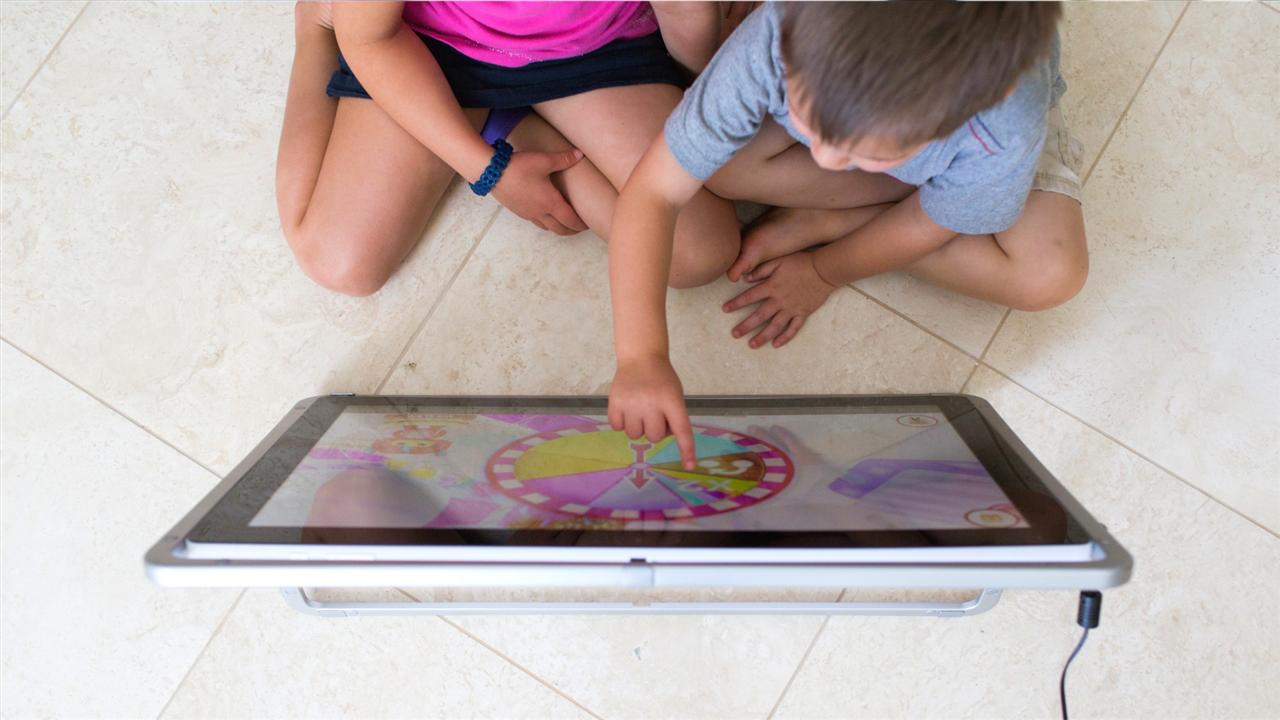
The real problem is not screens themselves, but what children do on them. Poorly designed apps that feed passive loops shrink imagination; well-designed drawing tools, by contrast, scaffold exploration, fine motor control, and personal expression in ways that paper alone sometimes cannot. Parents are right to worry about overuse and passive consumption, but the smarter response is to choose tools that encourage making, printing, and sharing, not blanket bans.
Why does the distinction between quantity and quality matter?
This challenge appears across home, classroom, and after-school programs: worry about overuse and passive consumption sits beside frustration that many digital tools offer little creative freedom. 70% of parents believe that excessive screen time is negatively impacting their children's creativity. That 2025 CNN finding captures the anxiety; what fuels it is less the device and more one-size-fits-all experiences that replace hands-on time.
How does app design change what screen time becomes?
If hours on a device are filled with closed, reward-heavy loops, creativity declines; if they include open canvases, adjustable complexity, and printable outcomes, those hours become practice in idea-making. Only 20% of screen time is spent on educational activities. Starglow’s May 2025 report shows most device hours are entertainment-first, which means parents and teachers must pick tools that deliberately tilt time toward skill-building and expression.
What features actually push a child from tapping to creating?
Look for an open canvas, optional layers of guidance, simple sharing or printing/exporting, and tools that reward iteration, not perfection. If a kids' drawing app locks every choice into canned stickers and uneditable templates, it trains users to copy, not invent. When we map these failure modes, the pattern is clear: constraints built to simplify onboarding often become creativity cages as usage grows.
Most families default to quick fixes that create hidden costs, and there is a different way.
Most caregivers start with free apps because they are familiar and immediate. That works at first, but as kids outgrow gimmicks, parents spend time searching, printing low-quality screens, and cobbling together themed activities for parties or lessons. Solutions like platforms with 18,503+ free coloring pages and a simple customization editor change that tradeoff, centralizing themed collections, instant downloads, and custom book creation so screen moments convert into printed projects and family art time without extra work.
What should you do this week to shift from passive play to active making?
Use one rule: every screen session should end with a created artifact, even a printed coloring sheet. Prioritize tools that export to PDF, let you build themed collections, and keep controls simple so children steer their own choices; these features turn short sessions into repeatable learning and family rituals.
That sounds solved, but the more complicated question is which specific apps actually deliver on those promises.
Related Reading
- Fun Websites for Kids
- Free Drawing Websites for Kids
- Coloring Websites for Kids
- Free Coloring Websites for Kids
- Educational Websites for Kids
- Coloring Pages Websites for Kids
- Learning Websites for Kids
28 Best Drawing Apps for Kids That Inspire Creativity
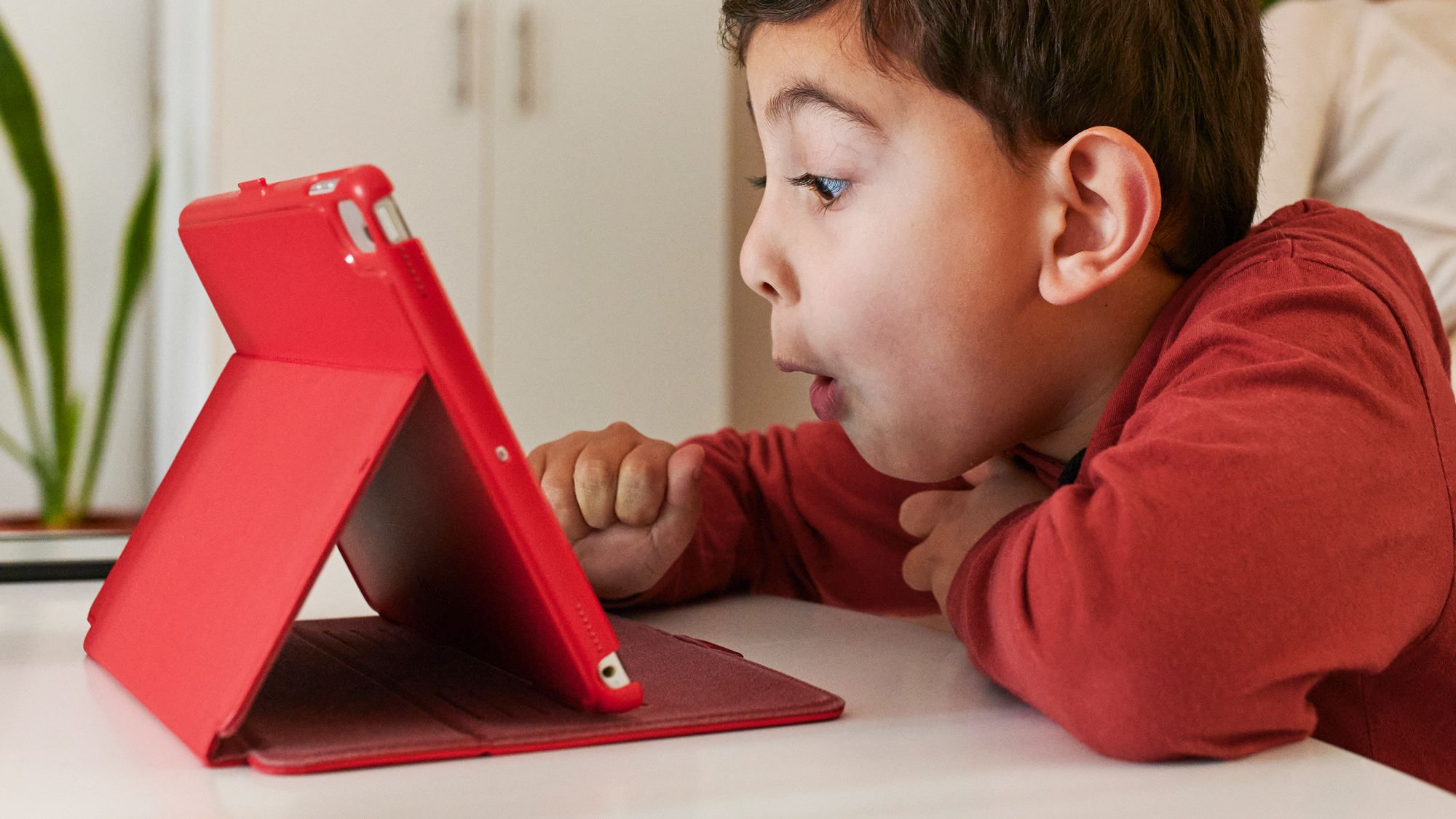
Below are 28 short, scannable profiles designed so you can see availability, cost, core value, and the features that matter to kids and parents at a glance.
1. My Coloring Pages
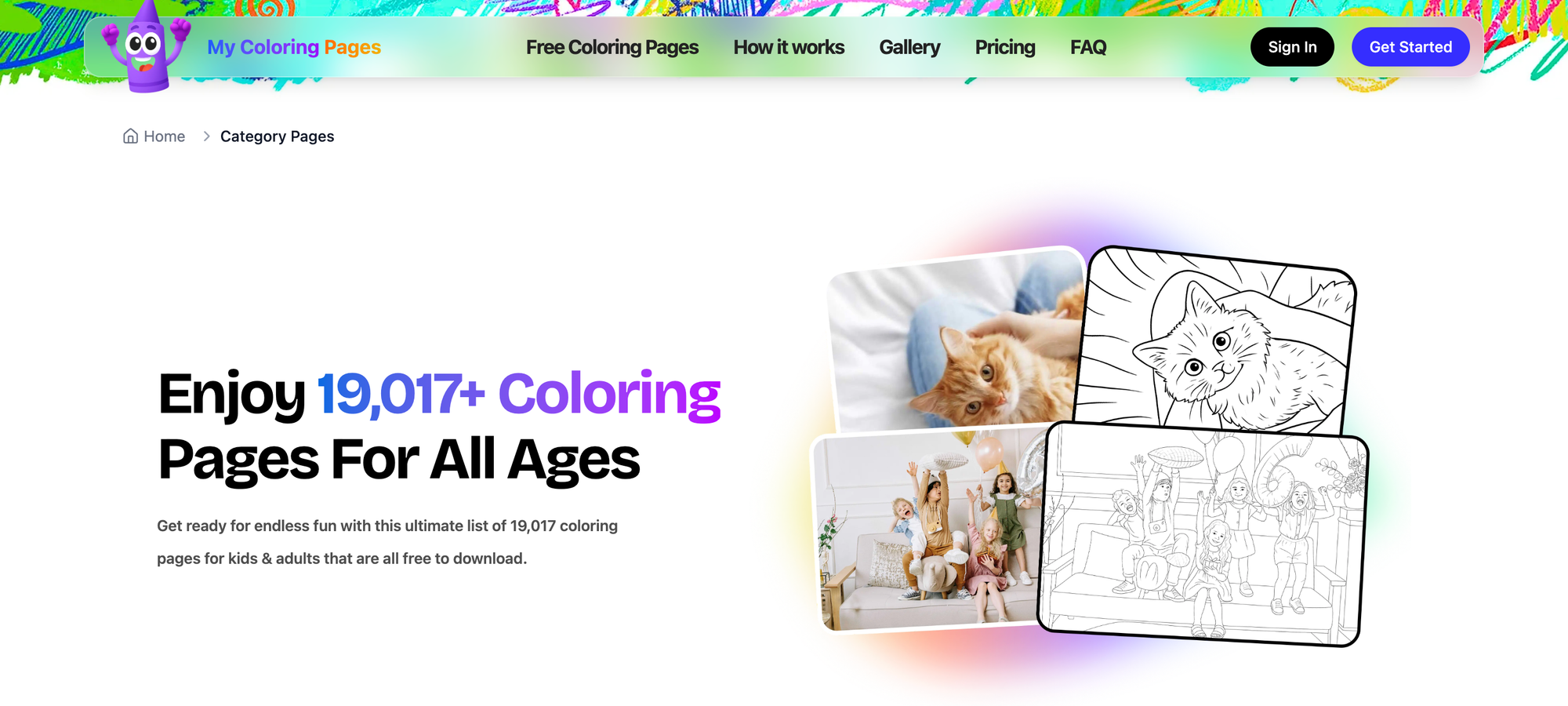
- Available on: Web
- How it’s free: The extensive core library and basic customization are free; optional paid bundles and higher-resolution downloads are available.
- Background: Built for parents, teachers, and families who want printable activities fast, this web tool focuses on customization and print-ready output.
- Features: Turn a photo or a short description into a printable coloring page in seconds; browse 18,503+ community pages; and assemble themed coloring books for lessons, parties, or quiet time. The editor keeps controls simple so kids can choose pages and parents can batch-export PDFs. The interface prioritizes clear export options, a printable layout, and minimal, intuitive settings so you get usable sheets without steep learning curves.
- Paid features: Optional one-off or bundle upgrades for high-res exports and commercial-use packs; the free tier still gives meaningful access to the library and basic editor.
- Why you’ll love it: Best for parents and teachers who want fast, printable creativity with minimal setup; it turns screen time into tangible keepsakes and lesson materials.
2. Google Keep
- Available on: Android, iOS, Web
- How it’s free: Completely free with a Google account.
- Background: Primarily a notes app, but it quietly includes simple drawing tools — handy when you want something basic without installing a new app.
- Features: Marker, pen, and highlighter with varying thicknesses and multiple paper types (blank, ruled, graph, dot), an eraser that removes entire strokes, and instant sync across devices so sketches travel with your child’s Google account. It’s minimal, so kids learn boundaries and parents avoid bloat.
- Paid features: None, core functionality remains free.
- Why you’ll love it: Great for basic doodling and quick sketches, ideal when you want a single app for notes and simple drawing without ads.
3. Chrome Canvas
- Available on: Web (Chromebooks, Chrome browser)
- How it’s free: Free to use and preinstalled on many Chromebooks.
- Background: Built for Chrome OS and simple pen input, it’s a step up from basic doodlers when your device is a Chromebook.
- Features: Graphite pencil, calligraphy pen, felt-tip marker, smudge tool, customizable color wheel, thickness slider, and layer support for stacking sketches. It’s efficient for quick lessons and sketch drills, and suits kids who want a bit more control without complexity.
- Paid features: None.
- Why you’ll love it: Clean, Chromebook-friendly drawing that scales from scribbles to layered sketches.
4. Kids Paint
- Available on: Android
- How it’s free: No account required.
- Background: A straightforward finger painting app best for toddlers and preschoolers who respond to bold color and simple touch mechanics.
- Features: 20+ bright colors, adjustable brush sizes, and offline use so you can hand a device to a child without connectivity concerns; interface keeps choices limited so little kids can create independently. Note the app favors phone layouts and may not fill wider Chromebook clamshell screens well.
- Paid features: None.
- Why you’ll love it: Ideal for very young kids who need a safe, low-friction painting experience.
5. Coloring Games: Coloring Book, Painting, Glow Drawing
- Available on: Android, iOS
- How it’s free: Free, ad-free promise according to the developer, with educational modes included.
- Background: Targets older children and preteens with a suite of modes from color-by-number to magical glow pens.
- Features: Multiple painting modes, a guided tutorial on launch, a glow pen with sparkles and animated effects, and water-paint simulations that feel playful and rewarding; the glow pen in particular encourages deliberate strokes and experimentation.
- Paid features: Optional extras may exist, but core modes are usable for free.
- Why you’ll love it: Best for kids 10–12 who enjoy special effects and varied coloring challenges.
6. Learn To Draw (Kids Painting)
- Available on: Android
- How it’s free: Free with basic content.
- Background: Portrait-only layout and simple mechanics, suited to very basic drawing practice.
- Features: Multi-colored pencil that cycles through colors with each stroke, simple palettes, and guided templates that let kids practice lines and shapes without overwhelming options.
- Paid features: May include ad removal or extra templates.
- Why you’ll love it: Good for very young artists who enjoy predictable, playful feedback while tracing shapes.
7. Adobe Fresco
- Available on: iOS, Windows, Mac
- How it’s free: As of late 2024, many core features are free after Adobe unlocked the full version.
- Background: A pro-grade drawing app designed for natural media simulation, now broadly accessible without a paywall.
- Features: Live watercolor and oil brushes, full pressure sensitivity, layers, vector and raster brushes, low latency with stylus input, and a professional toolset that scales from play to portfolio work. It’s robust enough that kids who like to refine technique can grow into professional workflows.
- Paid features: Requires a free Adobe account; previously subscription features are now available without paywalls.
- Why you’ll love it: Great for older kids and aspiring artists who want pro-level brushes and realistic paint behavior.
8. Sketchbook
- Available on: Android, iOS, Windows, Mac
- How it’s free: A fully free core app with optional one-time premium extras.
- Background: A long-standing, distraction-free workspace favored by sketchers.
- Features: Pressure sensitivity, unlimited layers, symmetry tools, a wide brush library, geometric shape tools, and a two-finger tap undo gesture; excellent for clean sketch workflows and freeform coloring with room to refine.
- Paid features: One-time upgrade for advanced features like clipping masks and brush imports, but the free tier is generous.
- Why you’ll love it: Perfect for kids who want an uncluttered, professional sketching environment that grows with skill.
9. HiPaint
- Available on: Android, iOS
- How it’s free: Free with ads and optional paid unlocks.
- Background: A close, free alternative to Procreate, built for touch and stylus users.
- Features: Layer support, pressure-sensitive brushes, blending tools, canvas rotation, selection tools, and quick flat fill; offline-ready and responsive. Note: the default pressure curve is firm; you can tweak settings if kids press too hard.
- Paid features: Ad removal, subscriptions or one-time purchases for brushes and advanced tools, time-limited unlocks via short ads are available.
- Why you’ll love it: Feels like a free Procreate, useful for older kids who want Pro-style gestures and tools.
10. Draw And Tell
- Available on: iOS, Android
- How it’s free: Completely free with no ads or popups.
- Background: Award-winning, created with learning and storytelling in mind and suited for classroom use.
- Features: Crayons, brushes, stencils, stickers, voice recording, and animation so kids can illustrate and narrate stories; excellent for small-group projects and for integrating art with literacy.
- Paid features: None, core features are free.
- Why you’ll love it: Built for young storytellers, it combines drawing with voice and simple animation for classroom and home use.
11. Draw In
- Available on: iOS, Android, Web (where noted)
- How it’s free: Free with core content.
- Background: An app focused on fine motor control through tracing challenges and precision tasks.
- Features: Outlined sketches kids must follow precisely, star-based rewards, and an immediate color-fill reveal that shows how close they came; it’s exercise for steadiness and focus rather than freeform art.
- Paid features: Optional levels or ad removal in some versions.
- Why you’ll love it: Great for improving fine motor skills and concentration with clear, measurable progress.
12. Draw.ai
- Available on: iOS, Android
- How it’s free: Freemium with free guided content.
- Background: Uses step-by-step animated instruction to help kids reproduce complex art, blending teaching with creativity.
- Features: Guided drawing sequences, auto-generated time-lapse replays so kids can see their own progress, and a coloring mode with glowing pen effects for the reveal stage.
- Paid features: Subscriptions or in-app packs may unlock expanded lesson libraries.
- Why you’ll love it: Excellent for kids who learn by watching and copying, with built-in celebration of progress.
13. Draw Story!
- Available on: iOS, Android
- How it’s free: Free with in-app purchases in some versions.
- Background: A genre mash of puzzle-adventure and drawing, where creations affect gameplay.
- Features: Players draw objects to solve problems, with levels that encourage strategic use of drawing and foster imaginative problem-solving; supports finger and stylus input.
- Paid features: Extra levels or cosmetic packs may be paid.
- Why you’ll love it: Perfect for kids who like game mechanics and want drawing tied directly to outcomes and play.
14. Doodle Buddy
- Available on: iOS, Android
- How it’s free: Free with optional in-app purchases.
- Background: Classic doodle tool that also lets kids decorate photos and experiment with stamps.
- Features: Over 1,400 stamps, background templates, smudge tool, and easy sharing; the stamp library keeps play fresh and social.
- Paid features: Some sticker packs and premium stamps require purchase.
- Why you’ll love it: Fun for kids who enjoy quick, creative play and decorating family photos.
Status quo, hidden cost, and the bridge
Most families juggle a patchwork of lightweight apps and printouts because those bits are familiar and immediate. Still, as activities multiply, you spend more time stitching content together and less time on purposeful creative moments. That friction results in lost prep time for parents and inconsistent learning for children. Platforms like 18,503+ free coloring pages give parents a single place to create, batch-download, and assemble themed books, cutting prep from hours to minutes while keeping outputs printable and classroom-ready.
15. Crayola Create And Play
- Available on: iOS, Android
- How it’s free: Freemium model, some content is free, subscriptions unlock the full library.
- Background: From a trusted kids’ brand, it blends guided drawing lessons with open play.
- Features: Step-by-step sketch lessons with dotted guides, a freestyle sketchpad, and branded characters that connect with familiar toys and TV; good for early art instruction with recognizable stimuli.
- Paid features: Subscription unlocks the full lesson catalog and branded content.
- Why you’ll love it: Best for kids who respond to guided steps and familiar characters while moving toward independent drawing.
16. Drawing With Carl
- Available on: iOS, Android
- How it’s free: Free core experience, with optional in-app purchases.
- Background: Focuses on using photos as canvases, plus playful tools that encourage remixing family images.
- Features: Unlimited photo imports, pattern paint bucket, mirror drawing mode, and talking stickers that repeat recorded phrases; kids can turn family photos into interactive canvases.
- Paid features: Premium sticker packs or filters may be paid for.
- Why you’ll love it: Great for kids who like to personalize photos and remix real-world images into art.
17. Bini Drawing For Kids!
- Available on: iOS, Android
- How it’s free: Free with in-app purchases for extra content.
- Background: Designed for toddlers and early learners with audio prompts and simple tasks.
- Features: Over 300 drawings with sounds, 100 character templates, and a task menu with voice prompts to guide completion and gamified progression.
- Paid features: Additional packs or ad removal may cost extra.
- Why you’ll love it: Ideal for toddlers who enjoy sound, color, and guided tracing tasks.
18. Artworkout (ArtWorkout)
- Available on: iOS, Android
- How it’s free: Freemium with lesson packs available.
- Background: A structured learning app for kids who want to advance drawing skills beyond basic play.
- Features: Over 200 step-by-step lessons spanning sketching, doodling, painting, and handwriting, progress evaluation that shows improvement, and bite-sized exercises that fit class periods.
- Paid features: Course bundles and advanced evaluation tools require payment.
- Why you’ll love it: Best for committed learners and older kids who want measurable progress and structured practice.
19. Joy Doodle
- Available on: Android, iOS
- How it’s free: Free core app with optional purchases.
- Background: Simple, colorful, and playful, focused on playback and discovery.
- Features: 20 magical brush types, blank and photo backgrounds, and playback of the drawing process that delights kids and encourages reflection on technique.
- Paid features: Extra brushes or stickers may be paid for.
- Why you’ll love it: Perfect for young kids who get motivated by watching their art replay.
20. Amaziograph
- Available on: iOS, Android
- How it’s free: Free demo with a one-off purchase to unlock full features.
- Background: Teaches symmetry and reflection with playful, mandala-style outputs.
- Features: Symmetry and kaleidoscope modes, easy exporting, and lessons that connect geometry with visual art to strengthen pattern recognition and fine motor coordination.
- Paid features: One-time fee unlocks full toolset.
- Why you’ll love it: Great for kids who like pattern-making and mathematically inspired art.
21. Glaze
- Available on: iOS, Mac
- How it’s free: One-off purchase model.
- Background: A studio-focused app that simulates traditional oil techniques with a discipline-focused twist.
- Features: Realistic oil textures, color mixing, layer-by-layer painting without an undo option to encourage deliberate practice and traditional painterly thinking.
- Paid features: A one-time purchase gives full functionality.
- Why you’ll love it: Best for older kids exploring traditional painting methods and patient practice.
22. Peppa Pig: Paintbox
- Available on: iOS
- How it’s free: Free with no ads or in-app purchases.
- Background: Branded for very young fans of Peppa Pig, with familiar settings and characters.
- Features: Simple brushes, animated stickers, and cartoon backgrounds that make creating scenes feel like play and support literacy through character recognition.
- Paid features: None.
- Why you’ll love it: Ideal for toddlers 2–6 who respond to character-led play and gentle, safe interfaces.
23. Scribblify
- Available on: iOS
- How it’s free: Free core tools, small fee for advanced palettes and backgrounds.
- Background: Appeals to kids and adults who enjoy textured, handcrafted brushes and kaleidoscope effects.
- Features: Handcrafted brushes with unique behaviors, mirror and kaleidoscope modes, advanced palettes and layers for more intricate creations.
- Paid features: Advanced color palettes and backgrounds cost a small fee.
- Why you’ll love it: Great for older kids and teens who like experimental brushes and complex mirror effects.
24. Tayasui Sketches
- Available on: Android, iOS
- How it’s free: Free with optional in-app purchases and cloud sync.
- Background: A refined sketching app that balances simple tools with high-quality brushes.
- Features: Realistic brush responses, photo import, cloud sync for cross-device access, and an elegant UI that keeps focus on drawing rather than menus.
- Paid features: Cloud sync and certain advanced brushes may require a purchase.
- Why you’ll love it: Best for kids who like sketchbooks and want a polished, low-friction tool.
25. Bamboo Paper
- Available on: iOS, Android, Windows
- How it’s free: Free with optional Wacom Cloud sync and upgrades.
- Background: From Wacom, built to feel like a physical sketch notebook with smooth ink tools.
- Features: Pencil, pen, brushed ink options, handwriting-friendly flow, and optional cloud sync; excellent for kids who enjoy journaling and doodling in notebook form.
- Paid features: Sync and advanced tool packs available.
- Why you’ll love it: Perfect for older kids who prefer notebook-style drawing and handwriting practice.
26. Art Set 4 Lite
- Available on: iOS, Android
- How it’s free: Free lite version with realistic tools included.
- Background: Focuses on realistic media simulation, from oil to chalk.
- Features: Textured brushes for realistic effects, useful for kids working on art class projects that require believable media, and the free version includes enough tools to get started.
- Paid features: Full version unlocks complete toolsets and textures.
- Why you’ll love it: Excellent for kids who want their digital art to look like real-world materials.
27. Paint Sparkle Draw
- Available on: iOS, Android
- How it’s free: Free with core features included.
- Background: Built for sparkle fans, it makes glitter a core mechanic rather than an add-on.
- Features: Sparkling brushes, glitter sound effects, and simple coloring plus freestyle drawing options; no purchases needed for basic glittery fun.
- Paid features: Some themed packs may be extra.
- Why you’ll love it: A joyful pick for kids who love glitter and sensory feedback in their drawings.
28. Toontastic 3D
- Available on: iOS, Android
- How it’s free: Free, no ads, and no purchases.
- Background: More than a drawing app, it is a story creation tool that combines sketching with 3D characters and animation.
- Features: Create characters, draw scenes, record voice, and animate stories in 3D; perfect for collaborative classroom projects and projects meant to be presented on larger screens.
- Paid features: None.
- Why you’ll love it: Best for kids who want to combine art with storytelling and basic animation.
A practical note about device fit and usability
This set of profiles reflects a familiar pattern: apps that prioritize flashy features often overlook device form factors and parenting realities, leading to frustrating mismatches on clamshell Chromebooks or when a child needs an app that works offline and prints cleanly. Choose based on the device you actually have and the outcome you want, not on feature lists alone.
For a wider comparison of kid-friendly drawing tools, the roundup in "28 Best Drawing Apps for Kids That Inspire Creativity is a proper third-party survey to cross-check options.
Curiosity loop
There’s a surprising tradeoff between “easy to start” and “stays useful as skills grow,” and what you pick now will reveal itself in weeks — what you choose next matters more than you think.
Related Reading
- Drawing Websites for Kids
- Best Educational Websites for Kids
- Art Websites for Kids
- Safe Websites for Kids
- List of Websites to Block for Kids
- Cool Websites for Kids
- Reading Apps for Kids
- Best Learning Apps for Kids
- Best Learning Games for Kids
- Math Apps for Kids
How to Choose the Right Drawing App for Your Child's Age and Interests

No single app fits every child. Match features to five concrete things—age, attention span, artistic interest, learning goals, and parental controls—and you’ll pick tools that actually support growth instead of wasting time.
How old is the user, really?
Preschoolers need big targets, few menus, and predictable feedback; think large color swatches, single-tap stamps, and an undo that does not frustrate. Early-elementary students benefit from gentle structure, such as guided strokes and reward badges that scaffold skills. Older kids, especially those using a stylus, should get layers, pressure sensitivity, and export options so their work can be refined or printed.
Does the child want to be led or to roam?
When choosing between guided lessons and free drawing, favor the style that matches the child’s motivation, not your assumption. According to Child Development Research, 85% of children aged 5-10 prefer drawing apps with interactive features, including step-by-step prompts, replayable demos, and bite-sized challenges, which help hold their attention and build confidence.
How long will they stay engaged?
Match activity length to attention span, then layer a challenge so a session can end cleanly. For short spans, pick apps with micro-tasks or quick coloring templates. For a longer focus, use sketch modes that autosave progress and let kids pick up where they left off. The practical test is simple: hand the device to your child for one trial session and watch whether they lose curiosity at two, ten, or twenty minutes.
What outcome are you aiming for—play, practice, or a lesson?
Because the Educational Technology Journal finds educators broadly endorse drawing tools for learning, choose apps that map to the skill you want to develop, whether it is fine motor control, visual storytelling, or spatial reasoning. That decision changes everything: an app built for storytelling will have voice recording and scene layouts, while a practice-focused app emphasizes tracing, repetition, and measurable progress.
Most parents stitch together several single-purpose apps because that feels immediate and familiar. This works at first, but as activities multiply, time spent hunting content, juggling file formats, and reassembling lesson materials becomes the real tax. Platforms like My Coloring Pages provide a single web-based customization and download workflow that centralizes themed content and export options, so parents spend less time assembling and more time guiding learning.
What about safety, privacy, and hidden costs?
This pattern appears across homes and classrooms: when apps are not reviewed first, surprises emerge, from unexpected purchases to age-inappropriate ads. Before handing over a device, test the app yourself, verify whether purchases require a password, review the privacy notes on data sharing, and confirm that an offline mode is available if needed. Basic checks take five minutes now and prevent frustrating interruptions later.
A fast matching checklist you can use right away
- Age match: toddler interfaces versus pro brush sets.
- Attention fit: micro-tasks for short spans, layered projects for longer focus.
- Interaction style: guided lessons or open canvas.
- Outcome fit: play, practice, or curriculum alignment.
- Safety: ads, IAP locks, account requirements, and offline behavior.
Think of app choice like picking a bike: training wheels and a low seat for first rides, gears and hand brakes when the child is ready.
Parents feel responsible and often exhausted by the search; that pressure eases when choices are framed by these five criteria and tested in a single short session.
The surprising part? What you choose now will quietly reshape family routines in ways you did not expect.
Related Reading
- Music Apps for Kids
- Best Apps for 6-Year-Olds
- Best Apps for Kids
- Best Coding Apps for Kids
- AI Tools for Kids
- Language Learning Apps for Kids
- Best Drawing Apps for Kids
Download 18,503+ FREE Coloring Pages
If you want a low-pressure way to move from screen sketches to hands-on practice, I recommend My Coloring Pages — tell it what you wish to or upload a photo. It turns that idea into a ready-to-print coloring page, with access to 18,503+ free community sheets. Use it as an easy, screen-optional fallback for quiet car rides, waiting rooms, or evening wind-downs that promote offline creativity, strengthen fine motor control, and give parents fast, no-fuss access to themed pages.